Tuesday, April 22, 2014

Export data from MDX Query directly on Excel file.

Export data from MDX Query directly on Excel file.

Hi Guys,

While generating data result thru MDX query some time we face many issues like taking or coping data result on SSMS, because MDX query generally does not give column names on sql management studio. It gives the column names only for the Measures.
also if you are using any property field of any dimension in MDX that field also does not come in result set.

Now I am sharing below scenario to extract data with column names and property fields.

First we have to make a data source connection thru excel data tab as below screen shot.


  1. Now enter your server name .. click on next
  2. Select Database and Cube.. click on next
  3. Save Data Connection and Finish.
  4. One pop up window will appear "Import Data". Click on CANCEL button.


NOW, go to this datasource location, by default it will be under Libraries\Documents\My Data Sources. There would be a .ODC file. Open with / Edit this in notepad by right clicking on .odc file.
below are some steps that should be edit.

We have to first change highlighted text Cube (as highlighted in yellow) and write "MDX" (as highlighted in Green) then remove CubeName (as highlighted in yellow) with your MDX query (as highlighted in Green).
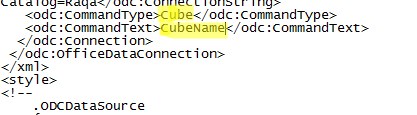


Save it and close it.

Come to excel sheet -> go to open file -> open that datasource->click on enable
now you will get desired MDX output on same sheet.


Some extra columns could be appeared which you have to remove it like below mentioned.


Now save this excel file and use it. :)

Wednesday, July 31, 2013

SSRS - Unchecked some values by Default from Multiple Value Parameter

SSRS - Unchecked some values by Default from Multiple Value Parameter.

There was one requirement in SSRS that Client wants to select some values in multiple value parameter by default but they need the functionality to see all values in same parameter. For example please have look in below screen shot..

here client wants to unchecked Afghanistan and Albania (marked in Red) by default but they want to see these values in parameter so that in future they can run report for Afghanistan and Albania by selecting these values. For these such type of functionality I tried a scenario as below:

Step-1
Make connection with AdventureWorks Database..

Step-2
Add Dataset1 in SSRS with SQL - select * from Person.CountryRegion.

Step-3
Add Dataset2 in SSRS with SQL - select * from Person.CountryRegion
where CountryRegionCode not in ('AF','AL','AQ') -- it will filter some countries like Afghanistan, Albania.

Step-4
Add Parameter "Counrty" select allow multiple values:


Step-5
Go to Available Values and choose Dataset1 for values from Query:


Step-6
Go to Default Values and Choose DATASET2 for values from Query:


Click OK..

Run the Report and you will get parameter as below:


Thanks .. 


Tuesday, July 16, 2013

SQL SERVER – Query to Find Column From All Tables of Database


SQL SERVER – Query to Find Column From All Tables of Database


Below script will return all the tables containing specific column along with their schema name.

USE Master
GO
SELECT t.name AS table_name,
SCHEMA_NAME(schema_id) AS schema_name,
c.name AS column_name
FROM sys.tables AS t
INNER JOIN sys.columns c ON t.OBJECT_ID = c.OBJECT_ID
WHERE c.name LIKE '%NAME%'
ORDER BY schema_name, table_name


Wednesday, June 26, 2013

Style Arguments for the CONVERT Datetime Function


Style Arguments for the CONVERT Function


Style
Associated standard
Input/Output ( 3 ) format
date
time(n)
datetime2(n)
datetimeoffset(n)
0 or 100 (1, 2)
Default
mon dd yyyy hh:miAM (or PM)
Jan 1 2001
12:20PM
Jan 1 2001 12:20PM
Jan 1 2001 12:20PM -08:00
101
U.S.
mm/dd/yyyy
1/1/2001
-
1/1/2001
1/1/2001
102
ANSI
yy.mm.dd
2001.01.01
-
2001.01.01
2001.01.01
103
British/French
dd/mm/yy
1/1/2001
-
1/1/2001
1/1/2001
104
German
dd.mm.yy
01.01.2001
-
01.01.2001
01.01.2001
105
Italian
dd-mm-yy
1/1/2001
-
1/1/2001
1/1/2001
106 (1)
-
dd mon yy
1-Jan-01
-
1-Jan-01
1-Jan-01
107 (1)
-
Mon dd, yy
1-Jan-01
-
1-Jan-01
1-Jan-01
108
-
hh:mi:ss
-
12:20:20
12:20:20
12:20:20
9 or 109 (1, 2)
Default + milliseconds
mon dd yyyy hh:mi:ss:mmmAM (or PM)
Jan 1 2001
12:20:20.1234567AM
Jan 1 2001 12:20:20.1234567PM
Jan 1 2001 12:20:20:1230000PM -08:00
110
United States
mm-dd-yy
1/1/2001
-
1/1/2001
1/1/2001
111
JAPAN
yy/mm/dd
1/1/2001
-
1/1/2001
1/1/2001
112
ISO
yymmdd
20010101
-
20010101
20010101
13 or 113 (1, 2)
Europe default + milliseconds
dd mon yyyy hh:mi:ss:mmm(24h)
1-Jan-01
20:20.1
20:20.1
01 Jan 2001 12:20:20:1230000 -08:00
114
-
hh:mi:ss:mmm(24h)
-
20:20.1
20:20.1
12:20:20:1230000 -08:00
20 or 120 (2)
ODBC canonical
yyyy-mm-dd hh:mi:ss(24h)
1/1/2001
12:20:20
1/1/2001 12:20
2001-01-01 12:20:20 -08:00
21 or 121 (2)
ODBC canonical (with milliseconds)
yyyy-mm-dd hh:mi:ss.mmm(24h)
1/1/2001
20:20.1
20:20.1
2001-01-01 12:20:20.1230000 -08:00
126 (4)
ISO8601
yyyy-mm-ddThh:mi:ss.mmm (no spaces)
1/1/2001
20:20.1
2001-01-01T 12:20:20.1234567
127(6, 7)
ISO8601 with time zone Z.
yyyy-mm-ddThh:mi:ss.mmmZ
1/1/2001
12:20:20.1234567Z
2001-01-01T 12:20:20.1234567Z
2001-01-01T20:20:20.1230000Z

(no spaces)
130 (1, 2)
Hijri (5)
dd mon yyyy hh:mi:ss:mmmAM
1-Jan-01
12:20:20.1230000PM
01 Jan 2001 12:20:20.1230000PM
1 Jan 2001 12:20:20:1230000PM -08:00
131 (2)
Hijri (5)
dd/mm/yy hh:mi:ss:mmmAM
1/1/2001
12:20:20.1230000PM
01/01/2001 12:20:20.1230000PM
01/01/2001 12:20:20.1230000PM -08:00

Tuesday, June 4, 2013

Crystal Report - Cascading Parameters.

Below are the steps of cascading parameters in crystal report..

1. Right-click Parameter Fields and select New.
2. Name the parameter and change List of Values to Dynamic.
3. In the Value column, click 'Click here to add item'. Select your state field then in the Parameters column click 'Click to create parameter'.
4. In the Value column in the second row, click 'Click here to add item'. Select your county field then in the Parameters column click 'Click to create parameter'.
5. In the third row select your city field and create the parameter.
6. Change any Value Options (you can do this for each of the parameters by selecting them from their rows and changing their options. Notice that as you select a value the Value Options changes from Level 1, Level 2 and Level 3.
7. Click OK. You now have three parameters that all start with the name you designated to the whole dynamic parameter. They come across as three separate fields but they act as one and will work in a cascading effect.

Note: As per my knowledge you can not add one more cascading parameter into existing cascading effect once it is created. You have to delete the existing one and create the whole parameter once again include the new cascading parameter into it.

Crystal Report - How to add page break.

Below are the steps from which we can add page break in crystal reports:

  • Step 1: Include dataset or database expert into your crystal report
  • Step2: In the outside surface of the report area right click and goto report and goto group expert
  • Step3: add the which field you include the group that time the bottom of the window options will appear
  • Step 4: click the option and agian goto 2nd tab of the option.
  • Step 5: finally check(check=true) check box of Repeat Group header on each page other check box or put uncheck

Note: Crystal Reports automatically add the sheet while exporting in excel if data is more than 65000 rows.